Rtools installation on a Windows 10/11, or a WURclient computer
 Image credit: Panos Sakalakis on Unsplash
Table of Contents
Motivation
Many people are able to use R, without ever having the need to compile from source and, therefore, the need to install Rtools. However, if you want to do package development, compile from source, or use packages like rstan or cmdstanr, you will definitely need to install Rtools.
In this post the installation procedure for Rtools will be given step wise. It will work for both regular Windows 10/11 computers as well as WURclient computers.
A WURclient desktop or laptop at Wageningen University & Research is not a standard Windows 11 computer. WURclients use Windows 11 Enterprise, which has been modified by Facilities and Services Information Technology (FB-IT) among others with respect to installation rights for security reasons.
This post will show how to install Rtools on a privately owned running Windows 10/11, or a WURclient desktop or laptop computer, where the user possesses POWER USER RIGHTS (Classic WURclient), or even ADMINISTRATOR RIGHTS (Modern WURclient).
The only difference is how the installer for Rtools is started.
Two ways to install Rtools are offered here:
- WUR AppStore. This is the RECOMMENDED way for students at Wageningen University & Research! Employees of Wageningen University & Research using a Modern WURclient can also use the WUR AppStore to install Rtools, whereas employees using a Classic WURclient can use Software Center to install Rtools.
- Manual installation for those who, for whatever reason, do not want to use the WUR AppStore.
1. WUR AppStore/Software Center
The WUR AppStore is the place where you will be able to download, link to, or virtually access the software you need for your study program and courses. Not only during the computer labs and courses, but also for self-study after those.
Modern WURclients have the WUR AppStore pre-installed. It can be found in the Start menu of your WURclient computer, and serves as a repository for approved applications.
For more information on using the WUR AppStore as a student see: What is the WUR AppStore
Windows 10/11 compatibility and WUR AppStore installation for students
- To safely use the study and course software, you need to connect your laptop to the WUR network with your WUR account. Windows 10 or 11 Education Edition or Professional Edition is needed on your laptop to be able to access the WUR AppStore. If you are using a Home Edition of Windows 10 or 11, you will be automatically upgraded to the Education Edition.
- If you have Windows 10 or 11, you can proceed to the manual: How to connect to the WUR AppStore.
Using the WUR AppStore/Software Center
The use of the WUR AppStore is very well described by the WUR TEAM Study Anytime, Anyplace. The first article can be found here: How can I use the WUR AppStore
The WUR AppStore and Software Center currently contains Rtools 4.5.6768.
Support WUR AppStore
In case you need support installing or using the WUR AppStore you can contact the WUR Servicedesk IT either by telephone: +31 (0)317 488888 / mail: Servicedesk.IT AT wur.nl. You can also visit the Servicepoint IT, ground floor left of the Grand Café, in Forum (Building 102) on the WUR Campus.
2. Manual Installation
Requirement
Prior requirement for using Rtools:
- R properly installed:
- R installed on Windows 10/11
- R installed on a WURclient via Software Center/WUR Appstore, or
- R installed on a WURclient using a custom installation
Without having R installed on your desktop or laptop computer it makes no sense to install RTools. The software Rtools provides, as the name suggests, tools (compilers, and such) for usage within R.
Download
Rtools can be downloaded for the following webpage: https://cran.r-project.org/bin/windows/Rtools/
Download the correct version, which matches the version of R installed on your desktop or laptop computer.
For R version 4.5.0 and above the installer for Rtools can be downloaded directly from this link: Rtools45 installer (ca. 461 MB, 64-bit).
Installation Rtools
The screenshots below are for the installation of Rtools42 and have not been updated, because the procedure for Rtools45 remains the same.
-
Open a File Explorer window (keyboard shortcut: 🪟 + E) and navigate to your downloads folder.
-
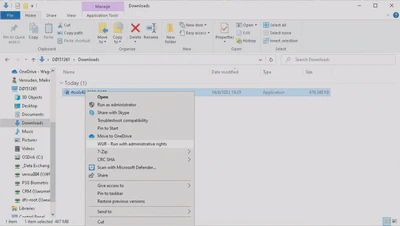
On a Windows 10/11 or a Modern WURClient (containing WUR Appstore) computer start the downloaded Rtools installer. For a Classic WURclient (containing Software Center) computer right-click the downloaded Rtools installer and select select ‘WUR - Run with administrative rights’ (see below in Figure 1).
- The Rtools installer will open with the Select Destination Location window as displayed below in Figure 2. Do not change the destination location, leave the default suggested value (showing
C:\rtools45)! Click ‘Next’ to continue.

- The installer will next show the Select Additional Tasks window, as show in Figure 3. Make sure that both boxes are ticked and click the ‘Next’ button to continue.

- Now the installer will present a window, as displayed below in Figure 4, with the selected installation options. Click the ‘Install’ button to start the installation or select ‘Back’ to modify the installer options.

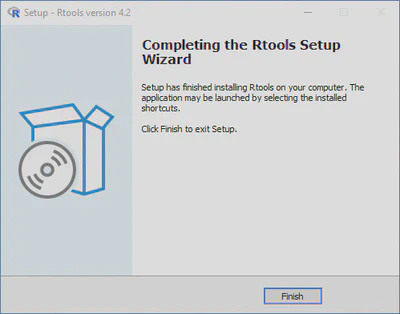
- Once the installer has completed, Figure 5 will be shown. Click the ‘Finish’ button to complete the installation.
Check the Installation
For Rtools 4.5 there is an easy way to check, that the installation of Rtools was successful.
- Open R (either RGui or RStudio)
- Execute the following command:
Sys.which("make")
When R returns "C:\\rtools45\\usr\\bin\\make.exe", you know that Rtools was successfully installed.
For Rtools 4.0 the returned path will be empty.
This does not mean that the installation was not successful. Just that Rtools was not automatically added to the PATH environment variable.
If you wish to add Rtools to the PATH environment variable, please follow the instructions on https://cran.r-project.org/bin/windows/Rtools/rtools40.html

Maikel Verouden, Ph.D.
Researcher | Lecturer | IT & Organization contact person
My research interests include Statistics, Teaching and programmable matter (statistical software).